> ## Documentation Index
> Fetch the complete documentation index at: https://docs.clevera.ai/llms.txt
> Use this file to discover all available pages before exploring further.
# Changelog
> Track what is new, improved, and fixed in Clevera so you can quickly see how the product evolves over time and what has changed since your last visit.
## Article generation is more accurate
Clevera now does a better job selecting and matching video frames to the right steps in your article, which makes generated documentation feel more relevant and useful. We also refined the draft and finalization flow so article output reads more naturally and needs less cleanup.
## Timeline and title syncing
Zooming the timeline now keeps your focus anchored more predictably, and the playhead snaps more cleanly as you edit. Intro card titles also stay synchronized with the screencast title, so your opening card and video stay aligned.
## Live chat
You can now reach support through live chat inside Clevera, so you can get help without leaving the app. This makes it faster to resolve questions while you’re recording, editing, or publishing.
## Text beats and animated lists
We added two new scene options and expanded templating for both scene and screencast content. Now you can add elegant text animations and animated lists to your videos.
## Animated shapes and annotations
We added loop animations to shapes and annotations to help videos look more dynamic and polished.
## Animated emojies and Shapes
Clevera now supports more custom layers in your videos, including shapes and animated emoji. This gives you more control over scene design and makes it easier to create polished, branded recordings.
## Auto-Captions
You can now generate captions for your screencasts and apply caption presets to style them faster. Captions also support better alignment controls and RTL languages, so they work more naturally across different layouts and languages.
## More controls over background music
You can now adjust the starting and ending time of background music in addition to new controls to dip the music layer partially across the timeline.
## Area recording is now available
You can now choose area capture when starting a recording, giving you more control over exactly what part of your screen is included. This is useful when you want to focus on a single window or section instead of recording the full display.
## A simpler way to create content
Recordings and finished work are now separate. Start from a screen recording, upload, or an existing source file, then choose what to make — demo, how-to, teaser, article, cleanup, or share-ready video. Raw source files stay behind the scenes; **Content** is where you edit, share, and publish.
## New video formats
**Teaser clips** — Fast-cut, music-driven clips with no voiceover, tuned for launches and announcements. **Cleanup videos** — Automatically trim fillers, pauses, and silence while keeping your original voice. **Share-ready videos** — Polish a recording into a styled video ready to publish, with optional camera overlay.
## Mobile login and device support
You can now log in from mobile devices, and recording controllers support both iOS and Android. Captures can include a **camera feed** and **system audio** alongside screen recording for richer source material.
## Better content organization
A new **Home** dashboard, unified **Content** hub, and guided **Create** flow make it easier to start work and find what you need. **Global search** finds content and collections from anywhere in the app. **Pinned collections** keep your most-used projects at hand.
## Video templates and AI rules
Save and reuse your look and voice across generations. **Video templates** control layout, music, and branding. **AI rules** store custom instructions so every generation follows your team’s style. **Scene templates** let you save and drop reusable scenes into the editor.
## Smarter generation
Generation is tuned for specific goals with **subtypes** (e.g. product launch, troubleshooting, SOP). The wizard walks you through format, style, and options step by step. AI agents run faster in parallel, use your **spoken instructions** from the recording, and show more accurate progress while content is generating.
## A more capable editor
Clip edits are **independent** — changing one scene no longer shifts neighbors. You can **split and delete clips**, insert new timeline items from gaps, and customize **cursor appearance**. Camera playback stays in sync with audio across scene changes.
## Richer sharing and embeds
Link **related content** from the same recording in share and embed views — for example, pair a how-to video with its help article. Viewers can discover companion content without leaving the player.
## Articles and translation
Article generation supports structured formats and subtypes (how-to, troubleshooting, SOP, and more). **Translate** flows for both video and articles are streamlined for creating localized versions from existing content.
## Silent scenes
You can now insert silent scenes into your recording timeline to create intentional pauses or section breaks without adding new footage. These scenes appear as their own artifact, making it easier to structure long recordings and guide viewers through the flow of your content.
## Improved scene segment editing
Scene video edits are now independent, so trimming one scene’s clip range won’t unnecessarily affect the others around it. The segment editor also has clearer boundary markers and more helpful controls, making it easier to fine-tune exactly where each scene starts and ends.
## Add freeze frames
You can now add freeze frames to a scene while editing video segments. This gives you a simple way to hold on a frame for emphasis, pacing, or cleanup without needing to re-record or edit externally.
## New Scene editor
Open **Edit Sync and Pacing** on any narrated scene (from the sidebar or the timeline) to match your recording to the voiceover. The scene editor uses two timelines: your full source recording on top, and how that footage plays in the finished scene below. Drag across unused footage to add clips, trim segment edges, and set playback speed from very slow (0.5×) through ultra fast (8×) so long UI steps stay snappy without rushing important moments.
Preview stays locked to your narration—the playhead follows the voiceover track, and a length bar shows how your clips line up with the script. For intro, outro, and pause scenes, pick the exact frame to hold while the voiceover plays. Changes save back to the timeline so exports reflect the pacing you set in the editor.
## Title cards, logo reveals, and video scenes
Add polished openings with the new title and intro card builder—stack text and images, pick backgrounds, and control entrance animations. Logo reveal scenes support your brand mark, company name styling, motion presets, and optional sound effects. Video scenes let you place uploaded footage on the timeline, trim source ranges in a refactored segment editor, and keep playback aligned with the rest of the recording.
## Scene transitions
Transitions between scenes are fully redesigned: fade, slide, wipe, iris, zoom, dreamy zoom, film burn, blur, and layered styles like slide overlap and zoom cross/swap. Adjust duration, direction, easing, optional sound effects, and effect-specific controls (for example blur intensity or zoom overlap) from a dedicated transition editor with preview.
## Timeline editing
The timeline is easier to scan and scrub: event segments show as a fast-loading filmstrip on the main track, the playhead follows playback more reliably, and the video-segment modal uses frame-based selection and a clearer layout. Context menus, scene coloring, and insert controls are tightened so common edits stay on the timeline.
## Voiceovers and segments
Add voiceovers on freeze or play segments, delete event voiceovers from the timeline, and use an updated add-voiceover flow. Video segment editing includes revision history so you can recover earlier trims, plus UI fixes for freeze-frame preview and segment slicing.
## Translation, compatibility, and rendering
New scenes translate more reliably, including card text, so localized recordings stay aligned as you edit. Older recordings remain supported (transitions apply on the new scene model where available). Export behavior is improved for transitions, title cards, logo reveals, and scene animations, with fixes for transition freezes, zoom layers, and background music during render.
## Other improvements
UI polish across light mode, transition and scene side panels, sound-effect pickers, and timeline context menus. Under the hood, Remotion is updated and TTS can fall back when generation times out—mostly invisible, but exports and generation should feel more dependable.
## Video cover
Add a professional opening to your videos with a customizable cover. Include a title, short description, and image, with optional animation, to give your videos clear context before the main content starts.
## New documentation integrations
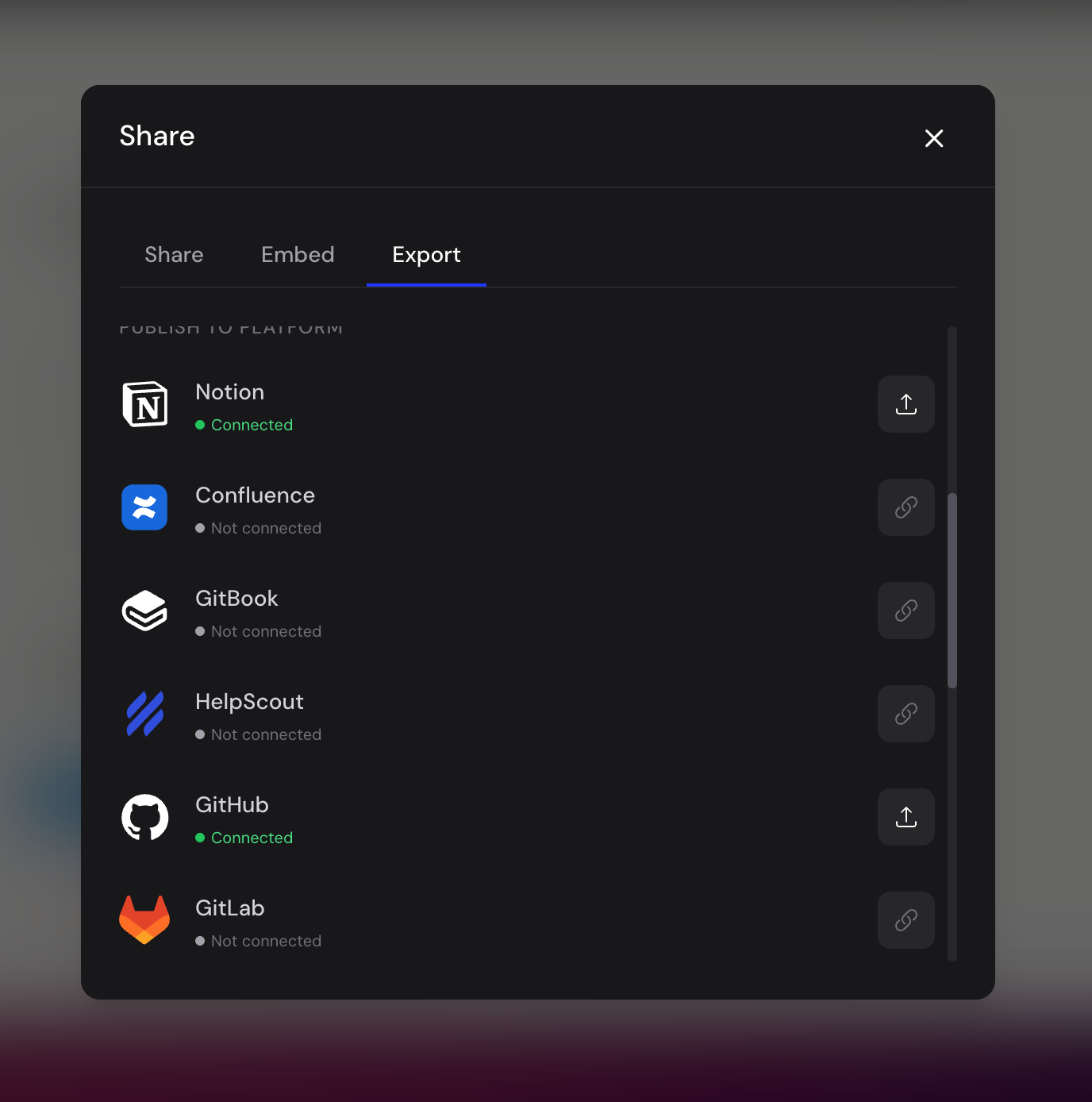
You can now export and publish Clevera articles directly to popular documentation and support platforms, including Zendesk, Notion, Confluence, GitBook, HelpScout, GitHub, GitLab, Bitbucket, ClickUp, Google Docs, and ReadMe, making it easier to keep your knowledge base in sync.
## Article generation and editor now available
Clevera can now turn your screen recordings into detailed, structured articles alongside your videos. This release introduces a full article editor with AI assisted rewriting, automatic screenshots, and flexible formatting, making it easy to publish complete video plus article documentation from a single recording.